
When Would You Need to Reassign EDGE Units?
There are two primary use cases for reassigning EDGE units:
1. Season Transition or Squad Changes
As teams move from one season to the next, athlete rosters often change. Some players may leave the club or move age groups, while new athletes join the team. In this situation, you’ll need to reassign existing EDGE units from former athletes to current squad members.
2. Upgrading from EDGE to EDGE Air
If you upgrade from EDGE to EDGE Air, you will receive new units that need to be assigned to athletes. Managing this transition correctly ensures a smooth workflow and avoids confusion during live sessions.
Use Case 1: Reassigning EDGE Units for a New Season or Squad
The most effective way to reassign EDGE units is during the session creation process.
To make reassignment faster and reduce errors, we strongly recommend renaming your EDGE units in the Settings menu before following these steps.
Step 1: Create a New Session
-
Open the PlayData app.
-
Select the green “+” button.
-
Create a new session from scratch.
-
Choose either:
-
Training Session, or
-
Match Session
-
Proceed through the session setup steps, including selecting the date and duration.
Step 2: Select the Correct Athletes
When prompted to select athletes for the session:
-
Ensure you are only selecting athletes who are present and active within this squad.
-
This is an important opportunity to ensure your roster reflects the current season.
- To add athletes please see Adding Club Members
Once athletes are selected, proceed to the next step.
Step 3: Assign EDGE Units
You will now arrive at the EDGE assignment screen.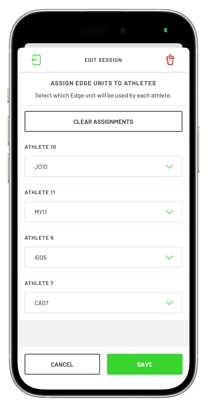
Here you can:
-
View all available EDGE units.
-
Manually assign each unit to the correct athlete.
-
Change existing assignments if a unit was previously linked to another player.
Simply select the unit and assign it to the appropriate athlete for that session.
Recommended Naming Convention:
-
Change the unit name to the athlete’s initials + jersey number.
-
Example: JD10
-
This makes it significantly easier to identify which unit belongs to which athlete when assigning units during session setup.
Clear naming improves:
-
Speed of assignment
-
Accuracy
-
Overall session workflow
Use Case 2: Upgrading from EDGE to EDGE Air
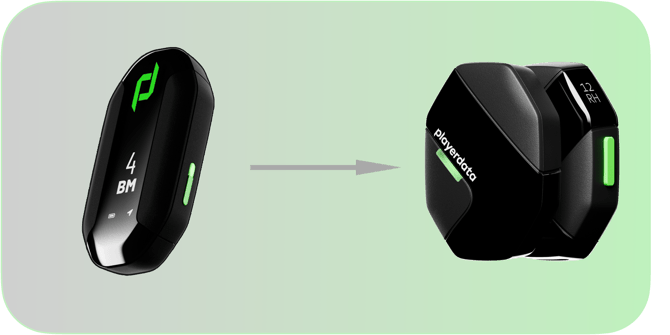
When upgrading hardware, there are a few additional steps to ensure a smooth transition.
Step 1: Rename New EDGE Air Units
When you receive new EDGE Air units, they will typically be labelled PD99 by default.
Before assigning them to athletes:
-
Navigate to the Settings menu.
-
Rename each new EDGE Air unit.
-
Assign each unit a label using the athlete’s initials + jersey number.
This ensures clear identification during the first assignment process.
Step 2: Update Old EDGE Unit Names
After the new EDGE Air units have been correctly renamed and assigned to athletes:
-
Rename the old EDGE units to PD99.
This helps:
-
Clearly distinguish old hardware from new hardware.
-
Prevent accidental assignment of the wrong unit.
-
Maintain clarity within the assignment screen.
Step 3: Sync New EDGE Air Units
When new units arrive, they will not automatically appear in the assignment screen if the “Only show synced EDGE” filter is enabled.
To avoid confusion:
-
Sync all new EDGE Air units as soon as they are received.
-
Ensure each unit successfully connects within the app.
-
Confirm they appear in the available assignment list.
Syncing first ensures:
-
All units are visible.
-
The assignment process is smooth.
-
There are no delays during your first session using the new hardware.
Final Recommendations
Reassigning EDGE units is best managed during session creation, where you can confirm active athletes and update assignments in one workflow. Using consistent naming conventions and syncing new hardware immediately will significantly reduce setup time and minimize errors.
By following these steps and best practices, you can efficiently transition between seasons, manage squad changes, or upgrade hardware without disrupting your data collection process.