
To get started, navigate to Settings and scroll down to Zone Management
Zone Configuration Types
You can set your athletes into one of three speed zone models:
- Club: based on the team average max acceleration/deceleration and values are applied to every athlete in the club.
- Individual Absolute: Custom acceleration/deceleration values set specifically for one athlete.
- Individual Relative: calculated as a % of the athlete's recorded maximum acceleration/deceleration.
1. Setting Club-Wide Zones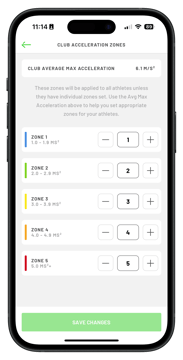
To apply acceleration and deceleration zones across your entire team:
- Tap the ‘Accel’ or ‘Decel’ on the top bar of the zone management screen
- Tap the ‘fixed club values’ at the top of the screen.
- You will see the
Club Average max acceleration/deceleration displayed for reference. - Adjust the thresholds for zone 1-5.
- To edit these, type a new value directly into the box or use the +/- buttons.
2. Managing Individual Athlete Zones
To customise settings for a specific player, select their name from the list on the Zone Management home screen: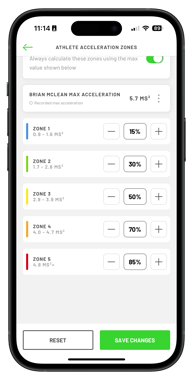
- Individual Relative:
- Select this from the dropdown to base zones on the player's maximum acceleration/declerration. The app displays their max recorded accel/decel; to manually override this, tap the three dots and adjust the values.
- You can then set their zones as a percentage of their max accel/decel.
- For example, you can set zone 5 as 85% of their max.
- Individual Absolute: Select this to manually input specific accel/decel values for each zone.
- Once happy with the zones, tap Save Changes.
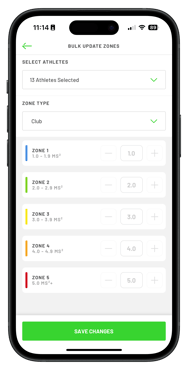
Bulk Updates:
- To update multiple players at once, tap Bulk Update Accel/Decel Zones. Select specific athletes or "Select All", choose the desired zone type (Club, Relative, or Absolute), and adjust the values.
- Then tap save changes for the updates to be made
Note: In Zone Management, you can see and configure all available acceleration and deceleration zones. In your session data, you’ll only see the specific zones you’re team has configured.