
The Dashboard is the first screen you see when you log in to the PlayerData web app.
Alert cards
The three cards at the top show what needs your attention today. Select the link on a card to view them.
-
Athletes above optimal load: Shows how many athletes are working at a cation or high risk ACWR. this takes you to the weekly load tab where you can view the athletes
-
Session missing data: Appears when GPS data hasn't been uploaded for a recent session. Go to the mobile app to Sync EDGE units.
-
Responses outstanding: Shows how many survey responses your squad still needs to repsond to. Select View surveys to follow up.
Latest session: This shows your most recent session
For a GPS session: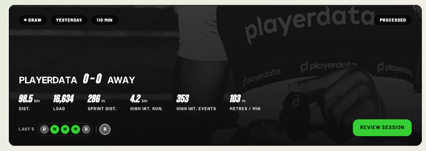
- Session tags: The result (for example, Draw), when it happened, how long it lasted and whether the data is Processed.
- Team totals: Distance, load, sprint distance, high-intensity running, high-intensity events and metres per minute.
- Last 5: The team's form across its last five matches.
For a camera session
- Recording preview: A preview of your recording.
- Session details: The date and duration of the session.
- Last 5: The team's form across its last five matches.
Select Review session to open the full session report.
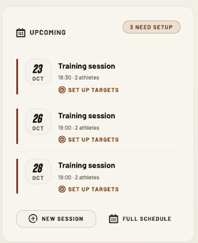 Upcoming sessions
The Upcoming panel displays your upcoming scheduled sessions. A Need setup tag indicates sessions where configuration is incomplete.
- Tasks may include setting targets, assigning EDGE units, or assigning athletes.
- Hover over any session to reveal the View, Edit and Delete quick actions.
- Select New session to schedule an activity, or Full schedule to view your complete schedule.
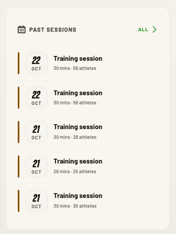
Past sessions
The Past sessions panel lists your most recent sessions, with the score for each match. Select a session to open it, or select All to see your full session history.
Team trends
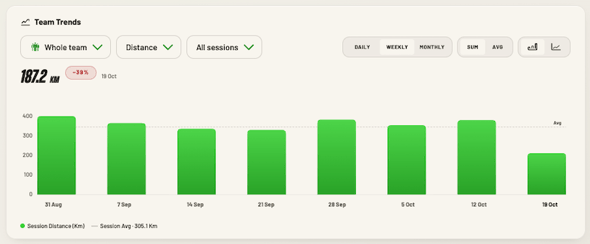
Use Team trends to see how a metric changes over time.
-
Choose who to view from the first drop-down, for example Whole team, or an athlete group such as Strikers
-
Choose a metric from the second drop-down, for example Distance or Sprint Distance.
-
Choose which sessions to include from the third drop-down (all, matches or training)
-
Select Daily, Weekly or Monthly to group the data.
-
Select Sum to see totals, or Avg to see the average per session.
-
Use the icons on the right to switch between a bar chart and a line chart.
The data above the chart shows the data from the most recent bar selected, with a percentage change against the previous period. The dashed line marks the average for this time period selected. .
Weekly load
Weekly load shows your team's acute:chronic workload ratio (ACWR). This compares the last 7 days of work (acute) with the last 28 days (chronic).
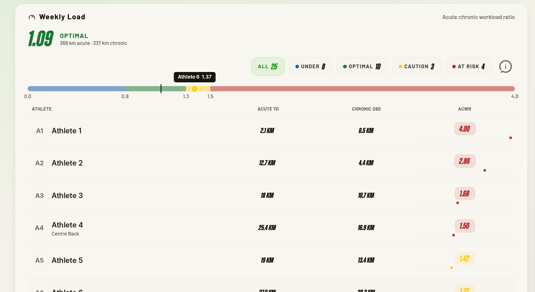
- The data at the top is the team average load , with its status (for example, Optimal).
- The colour bar shows where each athlete sits. Hover over an athlete's name to see them on the bar.
- Use the filter chips to show All, Under, Optimal, Caution or At risk athletes.
- The table lists each athlete's 7-day acute load, 28-day chronic load and ACWR, highest first.
Leaderboard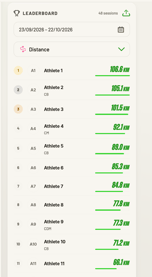
The Leaderboard ranks your athletes on a chosen metric.
- Select the calendar icon to set a date range. The number of sessions in that range shows at the top.
- Choose a metric from the drop-down, for example Distance.
- Select the export icon to download the leaderboard.