
Session Header
- The top banner displays key session details. Matches feature the final score, date, and kick-off time, while training displays total duration and creator details.
- Edit Session: Open the settings window to adjust timing, squad members, EDGE device linkages, gateways, video feeds, scoreline, surveys, tags, notes, or pitch selection. Select Save Changes to finish.
- Report: Produce a comprehensive PDF export to share with coaching personnel.
- CoachMate delivers Key Takeaways outlining overall performance, offering clear insights on how workload and intensity compare with previous fixtures.
5 Minute Session Breakdown
This chart shows how your squad's output changed across the session, in 5-minute blocks. The Peak Period banner and shaded area show your Maximum intensity period for the selected metric.
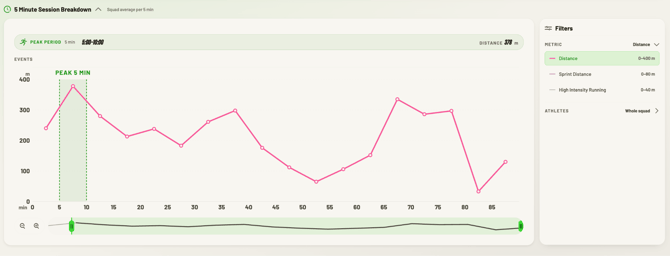
- Select a metric under Metric in the Filters panel: Distance, Sprint Distance or High Intensity Running.
- Select up to 6 Athletes to compare them against the squad average, or select the whole squad.
- For a match session, hover over a numbered marker at the top of the chart to see the events in that period, such as substitutions.
- Drag the handles on the timeline below the chart to zoom into part of the session.
Performance Data
The performance table shows every athlete's metrics, grouped by position.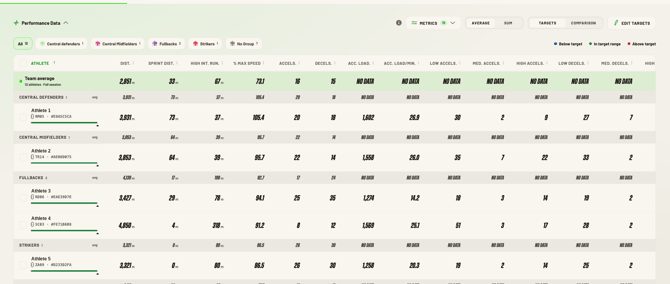
- Filter by timeframe for match events using Full Session, First Half, or Second Half.
- For training sessions, these selections display segments instead.
- Select to only view specific positional groups like Defenders to evaluate positional averages.
- Click Metrics to customise your displayed data points.
- You can modify or update existing session targets by tapping edit targets
- Toggle between totals and group averages using Average or Sum.
- Adjust the benchmark reference selector to modify comparison baselines for players.
- Last 7 days: Benchmark performance against recent workload trends.
- Last session: Evaluate output directly against the prior outing.
- Session average: Measure individual metrics against current squad norms.
- Personal best: Review metrics relative to all-time peak figures.
Green percentages show an increase and red percentages show a decrease against your chosen comparison.
Tactical Playback (match sessions only)
Tactical playback shows the playback of the entire match and athletes movements
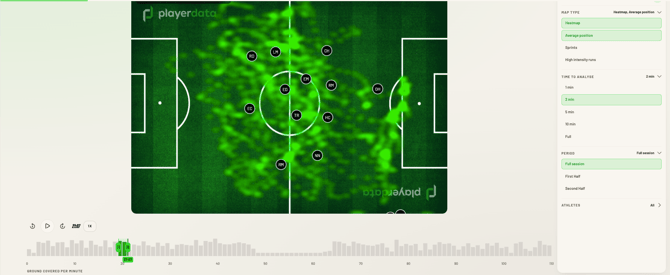
- Select athletes under Athletes, or choose Select All.
- Select a Map Type: Heatmap, Average Position, Sprints or High Intensity Runs. You can combine more than one.
- Select a Time to Analyse window: 1, 2, 5 or 10 minutes, or Full.
- Select a Period to focus on one half.
- Select Play, or drag the highlighted window along the timeline, to watch positions change through the session.
- Hover over an athlete to view their specific trace
See everything from your match or training session on one page. To view your session, open the PlayerData web app and then select the match or training session you want to review.
Session Header
-
The top banner displays key session details. Matches feature the final score, date, and kick-off time, while training displays total duration and creator details.
-
Edit Session: Open the settings window to adjust timing, squad members, EDGE device linkages, gateways, video feeds, scoreline, surveys, tags, notes, or pitch selection. Select Save Changes to finish.
-
Report: Produce a comprehensive PDF export to share with coaching personnel.
-
CoachMate delivers Key Takeaways outlining overall performance, offering clear insights on how workload and intensity compare with previous fixtures.
5 Minute Session Breakdown
This chart shows how your squad's output changed across the session, in 5-minute blocks. The Peak Period banner and shaded area show your Maximum intensity period for the selected metric.
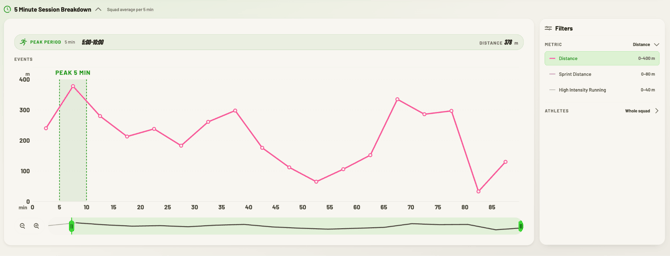
- Select a metric under Metric in the Filters panel: Distance, Sprint Distance or High Intensity Running.
- Select up to 6 Athletes to compare them against the squad average, or select the whole squad.
- For a match session, hover over a numbered marker at the top of the chart to see the events in that period, such as substitutions.
- Drag the handles on the timeline below the chart to zoom into part of the session.
Performance Data
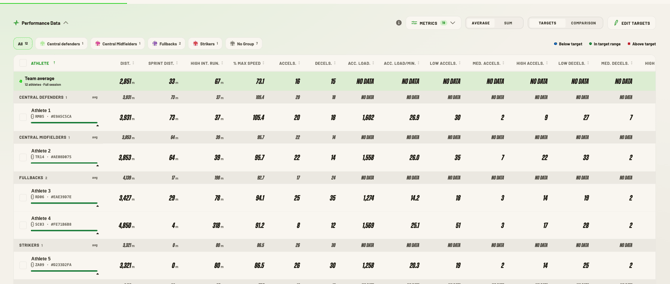
The performance table shows every athlete's metrics, grouped by position.
-
Filter by timeframe for match events using Full Session, First Half, or Second Half.
-
For training sessions, these selections display segments instead.
-
Select to only view specific positional groups like Defenders to evaluate positional averages.
-
Click Metrics to customise your displayed data points.
-
You can modify or update existing session targets by tapping edit targets
-
Toggle between totals and group averages using Average or Sum.
-
Adjust the benchmark reference selector to modify comparison baselines for players.
-
Last 7 days: Benchmark performance against recent workload trends.
-
Last session: Evaluate output directly against the prior outing.
-
Session average: Measure individual metrics against current squad norms.
-
Personal best: Review metrics relative to all-time peak figures.
Green percentages show an increase and red percentages show a decrease against your chosen comparison.
Tactical Playback (match sessions only)
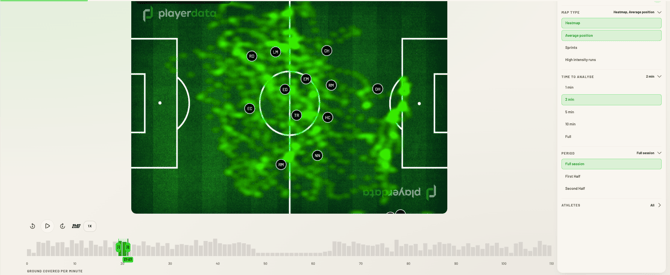
Tactical playback shows the playback of the entire match and athletes movements
- Select athletes under Athletes, or choose Select All.
- Select a Map Type: Heatmap, Average Position, Sprints or High Intensity Runs. You can combine more than one.
- Select a Time to Analyse window: 1, 2, 5 or 10 minutes, or Full.
- Select a Period to focus on one half.
- Select Play, or drag the highlighted window along the timeline, to watch positions change through the session.
- Hover over an athlete to view their specific trace