
Quick Access: You can access the web version here using your existing login credentials.
Key Navigation Changes
The functionality to create and manage sessions remains the same. We have optimised the layout for larger screens. Key navigation changes are noted below.
|
Feature |
Mobile App Location |
Web Version Location |
|---|---|---|
|
Navigation Bar |
Bottom of the app screen Highlights tab |
Sidebar on the left-hand side. |
|
Create tab |
Found at the bottom of the highlights screen green “+” icon. |
Sidebar on the left hand side named ‘create’ |
|
Activity Filters |
Top bar of the activity tab, expandable by tapping the filter icon |
Right hand side of the activity tab. All filters visible |
|
Bluetooth functions |
Sync data tab, Set edge names. |
Bluetooth functionality is unavailable on the web version. |
|
Notifications |
Bell icon in the top right corner. |
Bell icon located in the bottom of the sidebar |
Web-Only Benefits
- CSV Builder: Effortlessly create and manage your club’s CSV data.
- Survey Exports: Access all your team's survey responses in CSV format.
- Flexible Reporting: Create and manage custom reports tailored to your team's needs.
-
Clipped Segments: Create and clip session segments with a full speed trace view.
Visual Walkthrough
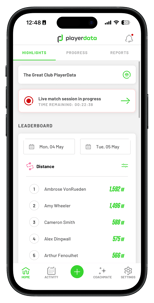
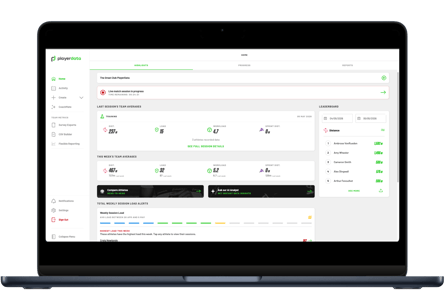
Home Screen Comparison
Below are side-by-side views of the home screen. The main changes are the navigation tab now being in the sidebar on the left hand side of the web app.
Video Guide
For a live walkthrough of these changes, please watch our quick video. It covers logging in, navigating the sidebar, and using web-only features.
Frequently Asked Questions
Can I create a session in the web app?
Yes, you can create a session on the web app by clicking create on the sidebar and ‘new session.
How can I create segments in the web app?
To create a segment, Go to the Activity tab and select the desired session. Click the Segments tab at the top and select "Create Segments". This will take you to the drill cutting screen, where you can view the players' speed traces.
Is the previous web version still available?
Our previous web version has now been retired but you can still access all your historical data including previous CSVs generated and reports created.