
Before you begin: your EDGE Air Units must be on firmware 0.4.91 or higher. Units on older firmware won't show battery status until they've been updated. For help on how ot update your units check out this support article
Where to find device checks
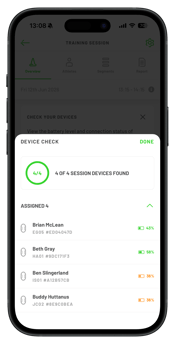
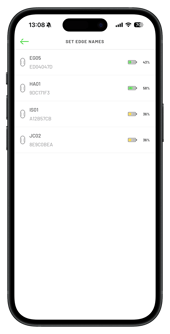
You can view EDGE Air Unit battery status in three places:
- In session: A Check Your Devices banner appears on the session overview from 15 minutes before your session start time.
- Session settings: Open the session settings cog in the top right corner
to find a Check Your Devices section in the session summary, with a Check Devices button. - Set Edge Names: Battery percentage is shown alongside each EDGE unit.
Running a device check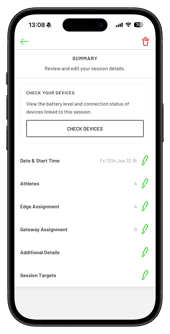
- Open your session in the PlayerData app.
- Tap the Check Your Devices banner on the session overview, or tap Check Devices in the session settings cog.
- Review the Device Check screen. You'll see:
- Battery percentage for every device assigned to athletes in the session.
- Any additional EDGE units found nearby — these are units detected by your device that aren't assigned to an athlete in this session.
- Charge or swap out any units running low before the session starts.
Troubleshooting
- A unit isn't showing battery status: Its firmware is likely below 4.91. Update the firmware and check again.
- You can't see the feature at all: Session Device Checks is being rolled out gradually. If it's not available on your account yet, contact PlayerData support.
- A unit appears under "found nearby": It's powered on and in range but not assigned to an athlete in this session. Assign it or set it aside as a spare.