
To access responses from your distributed surveys in the app:
-
Open the PlayerData app and tap the Activity tab on the home screen. At the top of the screen, tap surveys to view all the surveys you have distributed.
-
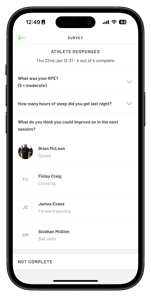
You will see a list of your surveys with the date they were distributed and how many athletes have completed each survey. To view the responses, tap the green arrow next to the survey name.
-
You will now see all survey questions; tap the dropdown arrow next to each question to view individual responses.
-
You will also see a list marked “not complete” for any athletes who still need to fill out the survey form.
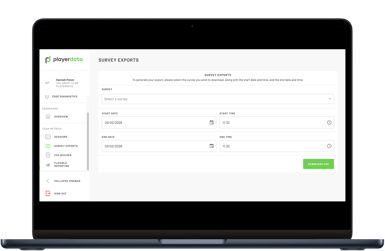
To export your survey responses as a CSV file, use our web app at app.playerdata.co.uk.
-
On the left-hand column of the home screen, tap “Survey exports”.
-
Tap “Select a survey” to choose which survey you would like to export and set the date range.
-
Then tap “Download CSV” and the survey results will be downloaded to your device.