
Before you begin: Device setup happens on your phone. If you started setup on a desktop, scan the QR code shown on screen to continue on mobile. Make sure your EDGE units are charged and powered on before you begin.
Step 1: Find your EDGE units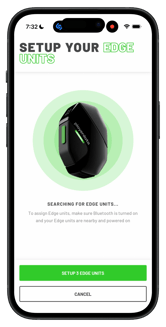
- Open the PlayerData app on your phone and navigate to the Device Setup step of your club setup.
- Click Find Edge Units and the app will automatically scan for nearby EDGE units that are on and in bluetooth range. The green button will indicate how many Edges were found.
- If a device doesn't appear, check that it's powered on and within range, then tap Cancel to find Edge units again.
Step 2: Name your EDGE units
Once your units are found, you'll set a two-letter Unit Code — this is a short prefix that will be used in
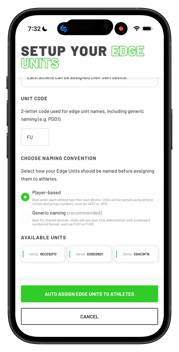
the device names for generic naming and any potential extra units if electing for Player-based input.
You will now choose a naming convention:
- Player-based names each unit according to the athlete's initials and jersey number.
- Generic naming uses your unit code followed by a number — this is recommended when devices are shared between players.
This will automatically assign the number of units you have to the available athletes in your club. If jersey numbers are not available, they will be assigned in order numerically.
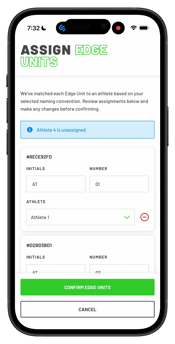
Step 3: Assign units to athletes
Assigning a unit to an athlete links their physical Edge Unit to their profile, so data is recorded against the correct person in every session. Once your units are named, tap Auto Assign Edge Units to Athletes.
Here you can adjust initials, jersey numbers or change unit assignments to athletes within your Club.
Tap Confirm Edge Units to save the assignment.
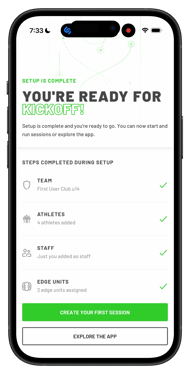
Step 4: Confirm you're session-ready
Once all units are named and assigned, you're ready to create your first session or continue exploring the app.
Troubleshooting
- Can't find a device? Make sure the unit is powered on, fully charged, and within a few metres of your phone. Tap Cancel and Find Edge Units to scan again.