
How To add Athletes
At the top of this step, you will see a checkbox:Send athlete invites at the end of setup. If selected, all athletes in your list will receive an email to create their accounts.
To get started, click or tap the + (Add) card to open the athlete set up options. You can add your team using three different methods:
Option 1: Invite Via Link/ QR Code
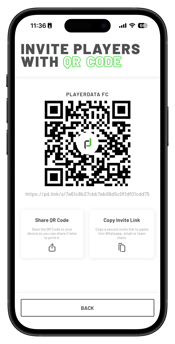
Best for quickly sharing an invite with athletes who have immediate access to a phone or computer.
- Share or Show QR Code: Save the generated QR code image to your device to share digitally or print out for your facility.
- Copy Invite Link: Copy a unique registration link to paste directly into WhatsApp, email, or your team's group chats.
- How it works: When athletes scan the QR code or click the link, they will be prompted to create an account and be added to your club in the pending members list in Settings -> Club Members.
Option 2:Upload Roster List (CSV)
Best for importing a large number of staff members all at once from an existing spreadsheet.
- Select Upload athlete roster and download the CSV template.
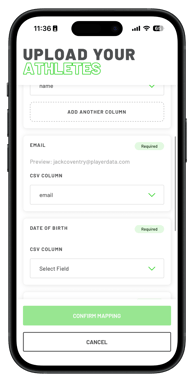
- Fill out your athletes' details and upload the file. (Compatible with exports from Playmetrics, TeamLinkt, 360Player, LeagueApps, and more).
- Map the columns to the required fields (Name, DOB, Gender, Shirt No., Email), review the preview, and click Confirm.
- Review Results: The system will display which entries were successfully created, skipped, or failed (with specific error reasons, like duplicate athletes or invalid emails).
Tip: If any entries fail during the import, you can fix the errors directly in your spreadsheet and re-upload the modified CSV file to try again.
Option 3:Manually Add Athletes
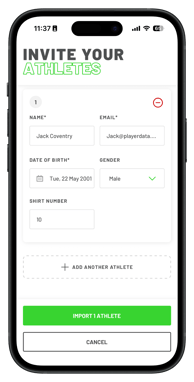
Best for adding a few athletes individually or one at a time.
- Select the manual option and enter the athletes Name, DOB, gender, Shirt no. and Email.
- Click + Add Another athlete to generate additional rows if you have more than one person to add.
- If you accidentally add an extra row, click the red - (minus) button to remove it.
- Once you have filled out the details, click Import [N] athletes.
Managing Your Athlete Overview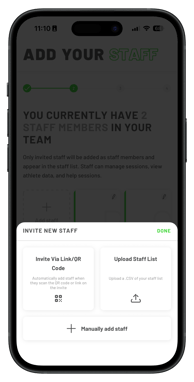
Once added, your athletes will update to display all team members as cards.
- To Edit: Click the pencil icon on any athlete card to update a member's name, email, or details.
- To Proceed: Click Continue at the bottom of the page when you are ready to move on to the next stage of your club onboarding.