
How To Add Club Members
- Open the PlayerData app and tap the settings icon in the bottom right corner and then scroll down to club members.
- Tap the athletes or staff tab depending on ho you want to add
- In the top right-hand corner tap the '+' button where you will see three options to add athletes.
Option 1: Invite Via Link/ QR Code
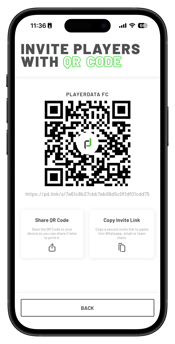
Best for quickly sharing an invite with athletes who have immediate access to a phone or computer.
- Share or Show QR Code: Save the generated QR code image to your device to share digitally or print out for your facility.
- Copy Invite Link: Copy a unique registration link to paste directly into WhatsApp, email, or your team's group chats.
- How it works: When athletes scan the QR code or click the link, they will be prompted to create an account and be added to your club in the pending members list in Settings ready for you to approve.
Option 2:Upload Roster List (CSV)
Best for importing a large number of members all at once from an existing spreadsheet.
- Select Upload athlete roster and download the CSV template.
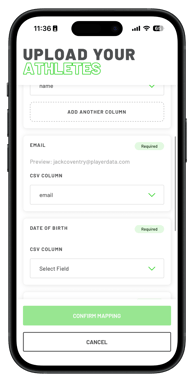
- Fill out your athletes' details and upload the file. (Compatible with exports from Playmetrics, TeamLinkt, 360Player, LeagueApps, and more).
- Map the columns to the required fields (Name, DOB, Gender, Shirt No., Email), review the preview, and click Confirm.
- Review Results: The system will display which entries were successfully created, skipped, or failed (with specific error reasons, like duplicate athletes or invalid emails).
Tip: If any entries fail during the import, you can fix the errors directly in your spreadsheet and re-upload the modified CSV file to try again.
Option 3:Manually Add Athletes
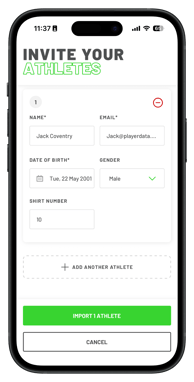
Best for adding a few athletes individually or one at a time.
- Select the manual option and enter the athletes Name, DOB, gender, Shirt no. and Email.
- Click + Add Another athlete to generate additional rows if you have more than one person to add.
- If you accidentally add an extra row, click the red - (minus) button to remove it.
- Once you have filled out the details, click Import athletes. They will show as completed and now be added to your team.
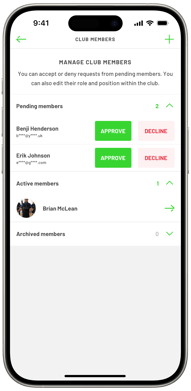 Archiving Members
- To remove any older members from your club you can do this by tapping their name and then selecting the bin icon in the top right corner.
- They will moved to the archived section of club members.
- To unarchive a member tap into the name and select unarchive.